Ons API
Ons API Dashboard - Setting up API access
Ons API uses client certificates for API access. See certificate requirements for technical requirements. Ons API offers certificates with access at three different levels:
| Scope | Where it applies | Common name (CN) | Validity |
|---|---|---|---|
| Global | All supplier connectors and all customer environments with approved consent in one stage | {supplier_code}-{STAGE}-{identifier} |
90 days |
| Connector | One connector and all customer environments with approved consent in one stage | {connector_technical_name}-{STAGE}-{identifier} |
180 days |
| Environment | One specific customer environment for one connector | {connector_technical_name}-{customer_code}-{identifier} |
365 days |
For global and connector certificates, STAGE must be exactly DEVELOPMENT, STAGING, or PRODUCTION (uppercase). Use the supplier code from the dashboard and the existing connector’s technical name exactly as shown there, not its display name. For an environment certificate, use that environment’s customer code. TE1002 is the Nedap development environment. The certificate’s stage must match the target environment.
A broader scope does not grant access by itself. The healthcare organisation must approve the connector version for the target environment. One global or connector certificate can serve several approved environments, each with its own consent.
Add an environment and request access
Below are the steps to request access to a customer environment for a version of your connector. No version yet? See Specify a connector.
If you are a healthcare organisation developing for your own Ons environments, your environments will already appear in the connector’s Customers overview. The intended workflow is to open an environment there and use Request version (or Change version if a version is already active) to request the desired version as a pending version, as you would for a version upgrade. The New environment button is not available to healthcare organisations.
- Open Connectors, select the connector, and open Customers.
- Select New environment. Search by customer name or complete customer code, then select the environment and connector version.
- Select Add environment. The selected version becomes pending. The healthcare organisation can approve or deny the request in Ons Podium. Draft versions can only be used on development environments; lock a version before requesting staging or production access.
- Open the customer environment to see its current and pending version, consent status and certificate coverage. Access starts only after version approval and with an active certificate covering the environment.
Request a new version for an existing environment
Open the environment under Customers and select Change version. Select the new version and Request change. The current approved version remains in use while the new version is pending. The healthcare organisation can approve or deny the request in Ons Podium. On approval, the environment uses the new version. A certificate at a matching scope and stage remains usable, subject to the new version’s approved consent.
Set up and use certificates
Generate a CSR with an RSA key of at least 4096 bits. Only the common name (CN) is required; you do not need to fill in fields such as OU, O, L, ST, C or email address. In the OpenSSL examples below, -subj fills in only the CN. Replace the example values with your own supplier code, connector technical name, customer code, stage and identifier. Each command creates a CSR and a KEY file. Store the KEY file securely and never share it, including with Nedap. Upload only the CSR. If the private key is inadvertently shared, immediately disable and/or revoke the certificate in the Ons API Dashboard (Revoke serial), generate a new key and CSR, and inform Nedap.
Global certificate
Example CN: ONSAPI_000-DEVELOPMENT-example.
openssl req -out ONSAPI_000-DEVELOPMENT-example.csr -new -newkey rsa:4096 -nodes -keyout ONSAPI_000-DEVELOPMENT-example.key -subj "/CN=ONSAPI_000-DEVELOPMENT-example"
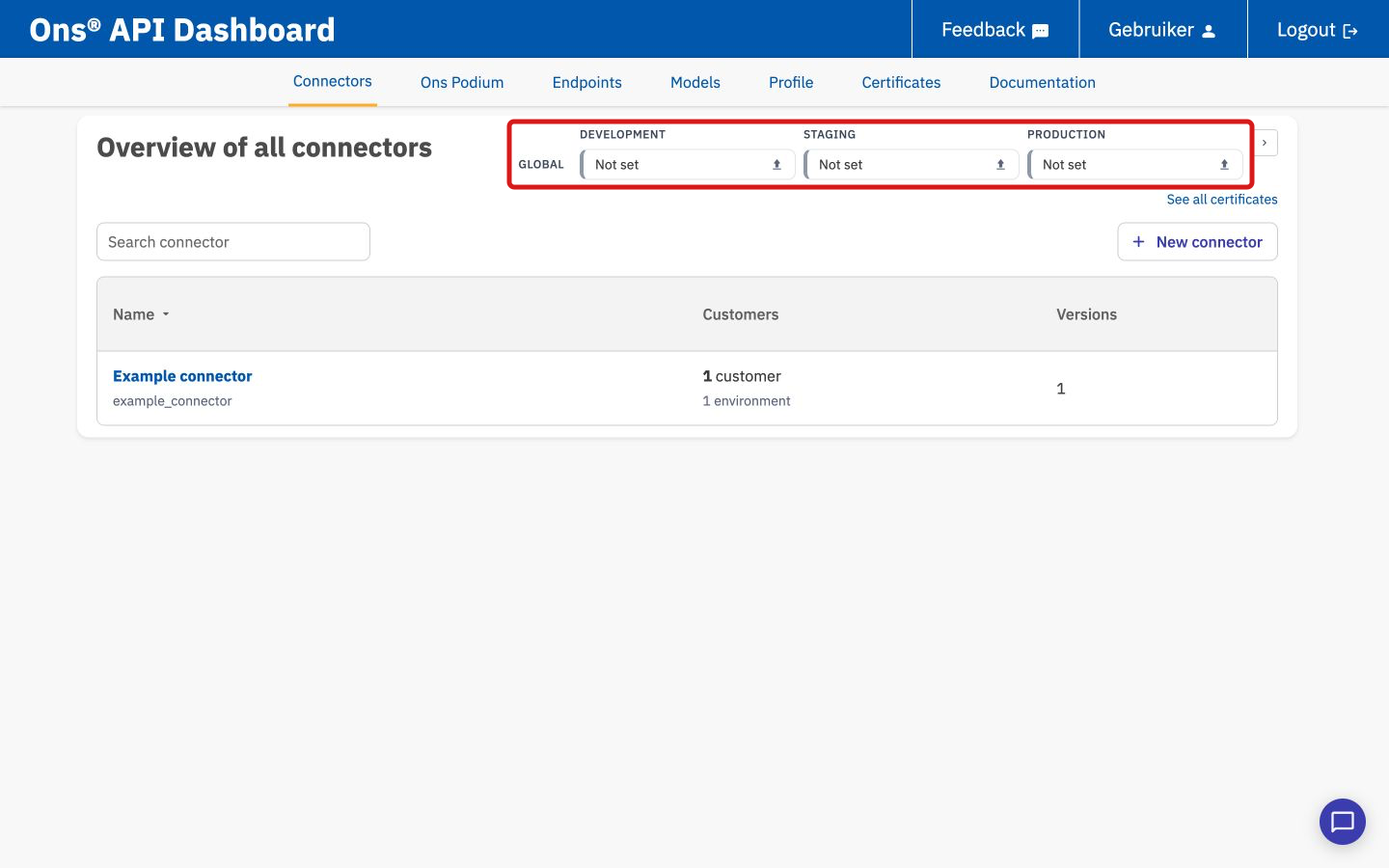
Open the Connectors overview and show the certificate cards under Global if needed. Click the certificate status card and choose Upload a CSR file in the dialog. Confirm with Upload CSR. The CSR is signed immediately.
With this certificate, send the HTTP headers X-Connector-Technical-Name with the target connector’s technical name (for example, example_connector) and X-Customer-Code with the target environment’s customer code (for example, TE1002) on every API request.
Connector certificate
Example CN: example_connector-DEVELOPMENT-example.
openssl req -out example_connector-DEVELOPMENT-example.csr -new -newkey rsa:4096 -nodes -keyout example_connector-DEVELOPMENT-example.key -subj "/CN=example_connector-DEVELOPMENT-example"
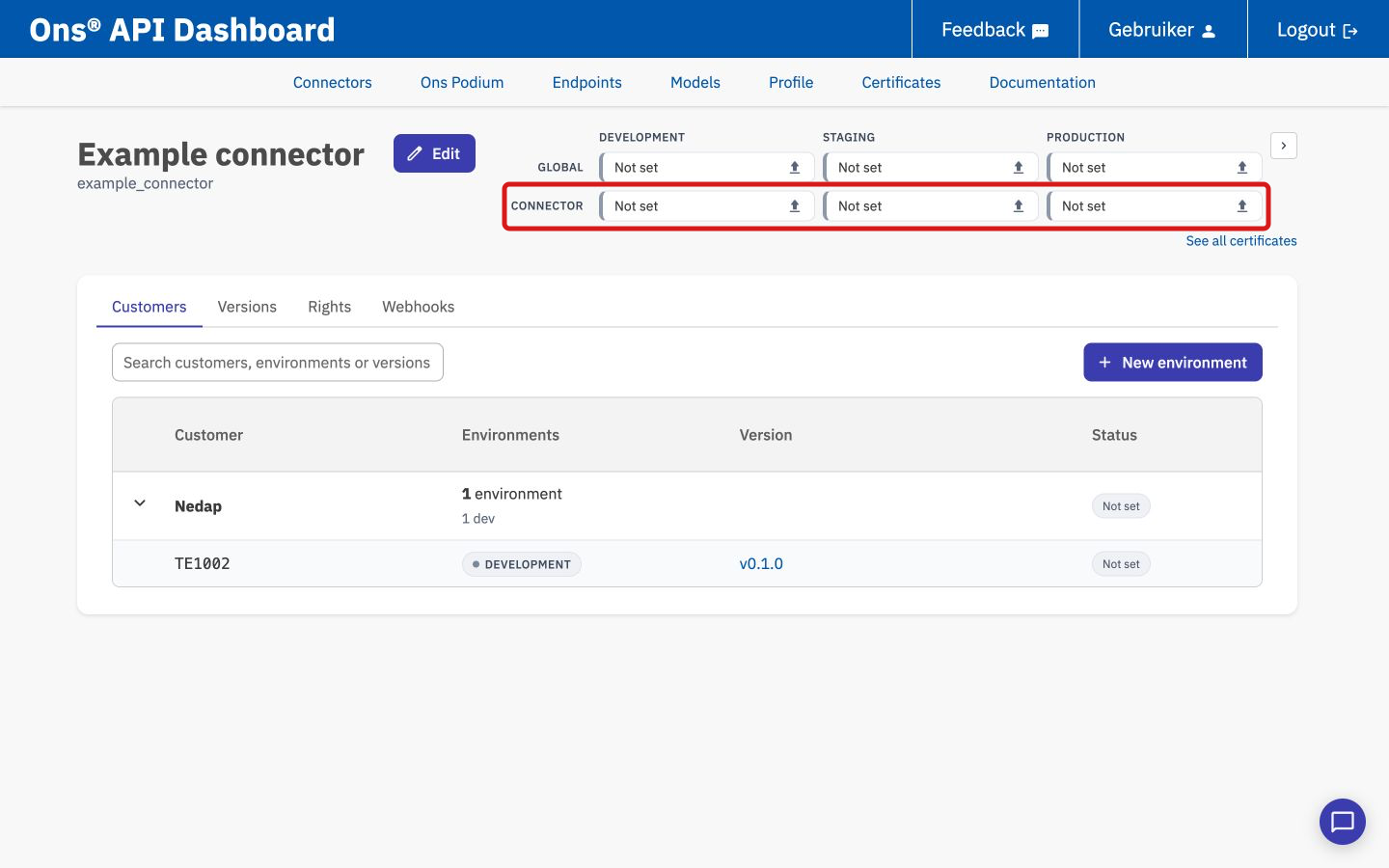
Open the connector and go to its certificate cards. Click the certificate status card under Connector and choose Upload a CSR file. Confirm with Upload CSR. The CSR is signed immediately.
With this certificate, send the HTTP header X-Customer-Code with the target environment’s customer code on every API request, for example TE1002. The connector is already in the CN. If you also send X-Connector-Technical-Name, it must match the connector in the CN.
Environment certificate
Example CN: example_connector-TE1002-example.
openssl req -out example_connector-TE1002-example.csr -new -newkey rsa:4096 -nodes -keyout example_connector-TE1002-example.key -subj "/CN=example_connector-TE1002-example"
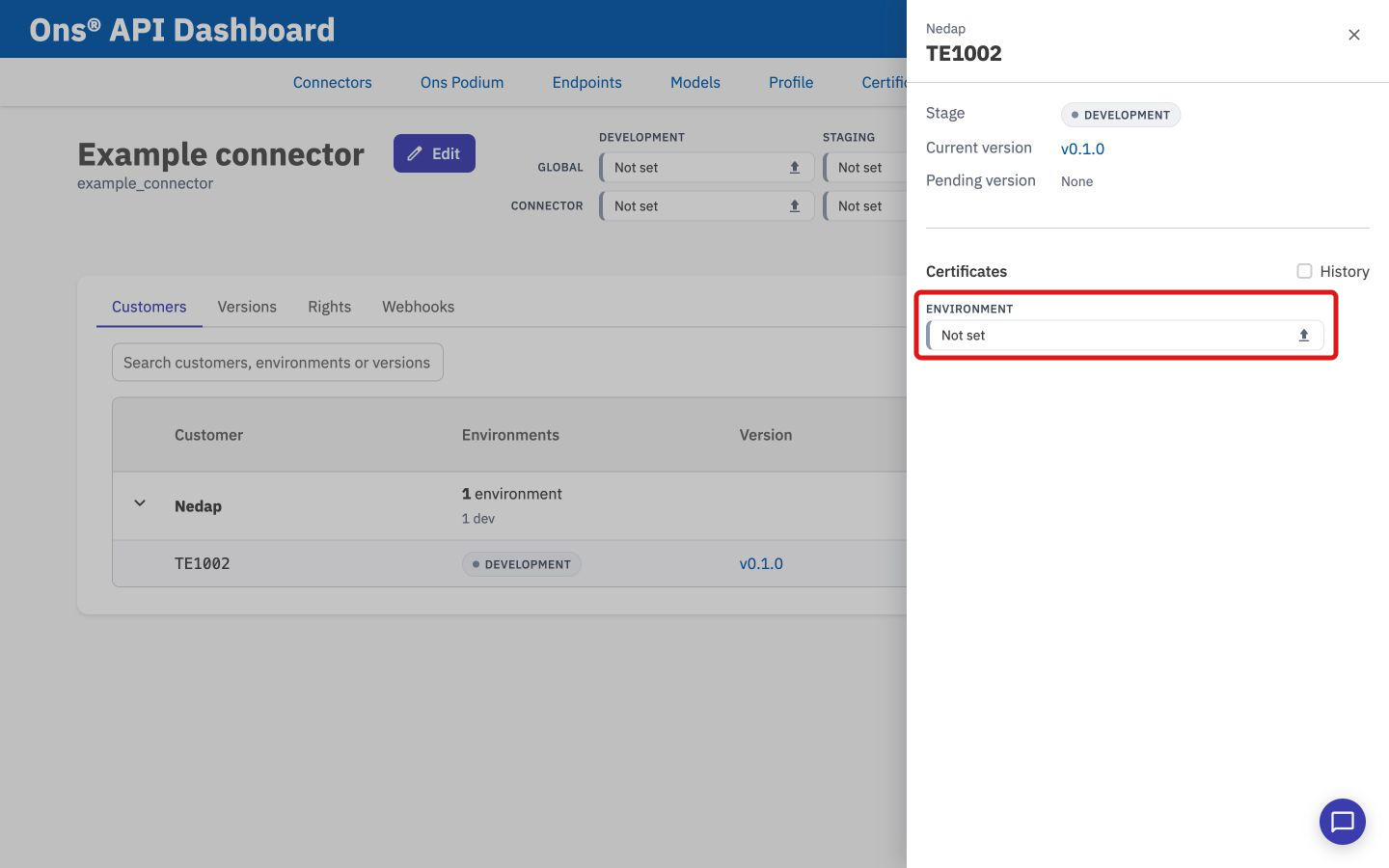
Open Customers on the connector and select the customer environment. In its Certificates section, use the certificate status card or Renew on an existing certificate. Choose Upload a CSR file and confirm with Upload CSR. The CSR may await customer consent approval before the certificate is signed.
These HTTP headers are not needed for API requests with this certificate: the connector and customer code are already in the CN. If you do send X-Connector-Technical-Name or X-Customer-Code, its value must match the CN.
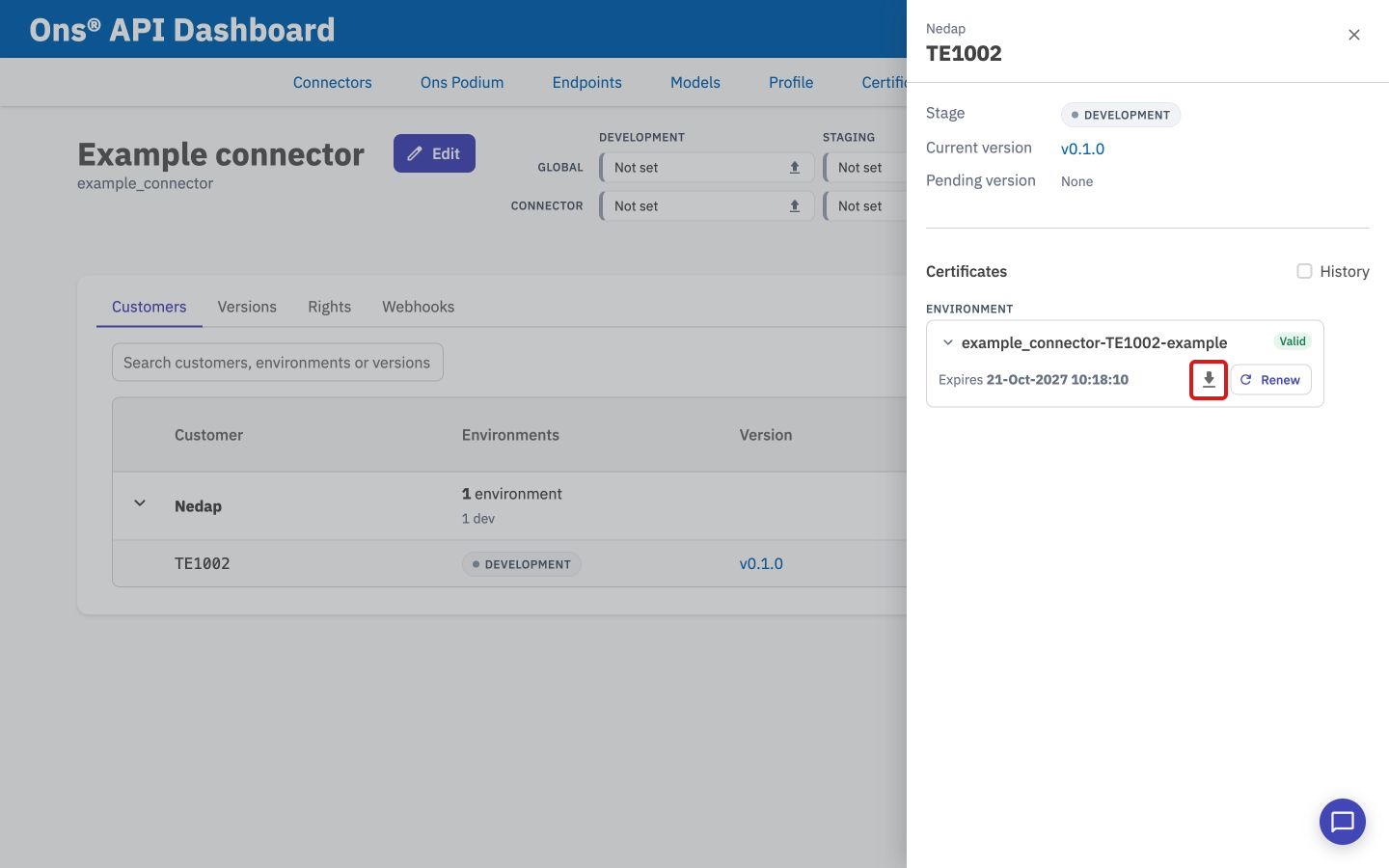
After signing, find the certificate in the same place: open the connector, go to Customers, and select the environment. In Certificates, click the download icon to the right of the expiry date to download the PEM file.